TV remote app
Roku Remote App for Android and iOS
Loungemote turns your phone or tablet into a remote for Roku TVs and Roku streaming players, including Roku TV models from TCL, Hisense and other brands. There is nothing to pair.
iPhone and iPad version coming soon
- 3 days free
- No ads
- No account
What you can do
Free:
- Find and pair your TV, then press a first key to check that it responds
- Demo TV to try every feature without a TV
With Loungemote Pro (eligible new subscribers can try the weekly plan free for 3 days):
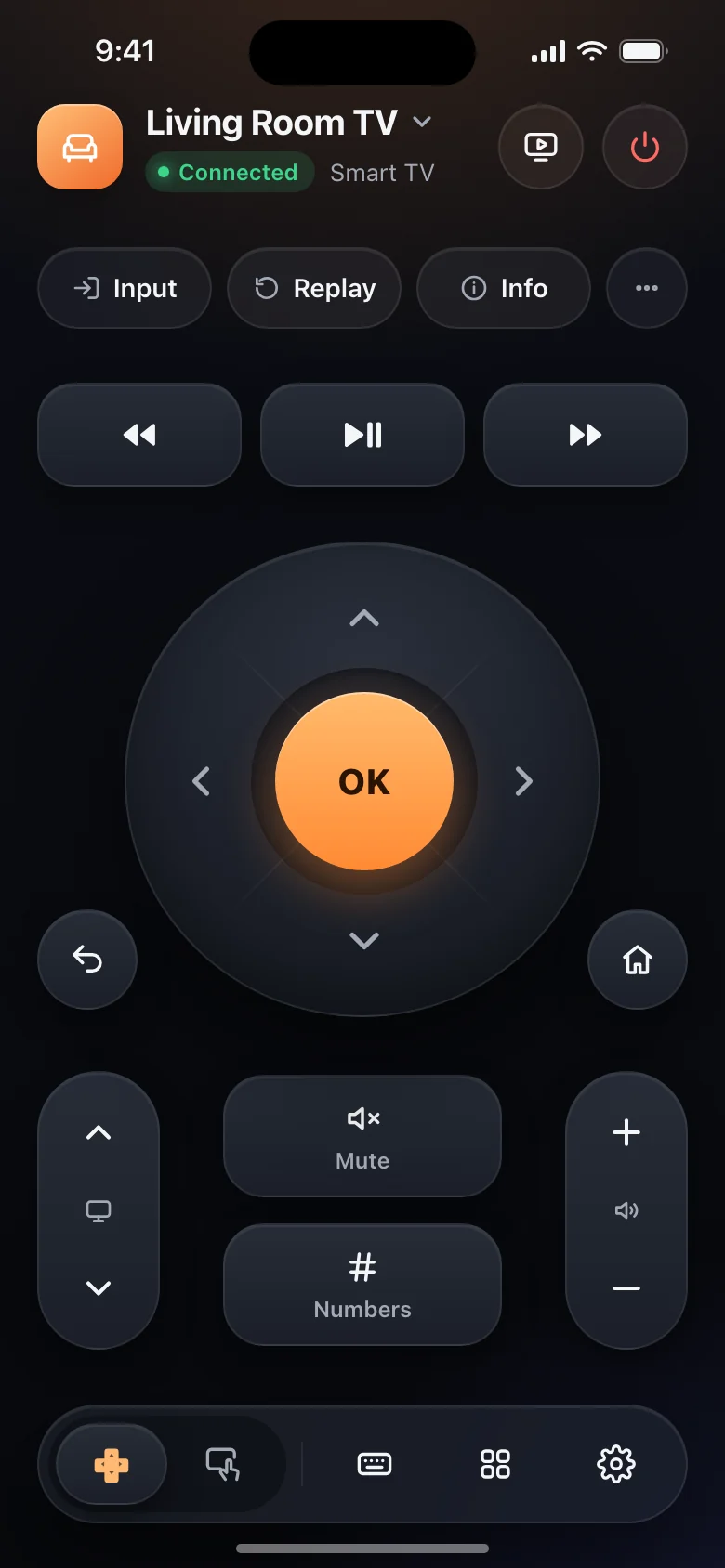
- Directional pad, OK, Back and Home, volume, mute, channels and playback keys
- Turn the TV on over Wi-Fi, on TVs that support it
- Simple layout with big buttons
- Phone keyboard: type searches and sign-ins with your phone keyboard.
- Apps in one tap: open the apps on the TV from your phone
- Swipe touchpad for one-handed navigation
- Every TV at home: save several TVs and switch in a tap
- Casting: photos, slideshows, videos, files and links
- Siri and Shortcuts (iOS only, coming soon): turn the TV on or off, mute it or open an app by voice
Some features depend on the TV model and its software.
Set up in three steps
- Connect your phone and the TV to the same Wi-Fi network. Guest networks often block the connection.
- Open Loungemote. It finds the TV on your network by itself.
- Roku devices need no pairing. Select your Roku in the list and start.
Pairing happens only the first time. Next time, the app reconnects when you open it. If the TV does not appear, choose Add by IP address and type the address from the TV’s network settings.
Turn the TV on from your phone
Roku TVs can start from the network when Fast TV start is on. On most Roku TVs it is in Settings > System > Power. Roku streaming players stay on, so they need no setting.
Good to know
- Volume and power-on work on Roku TVs, not on Roku streaming players.
- If the Roku blocks commands, open Settings > System > Advanced system settings > Control by mobile apps and set Network access to Default.
- Your phone and the TV must be on the same Wi-Fi network. Loungemote does not use infrared, and it cannot control the TV from outside your home.
Questions about Roku
Does Loungemote work with TCL and Hisense Roku TVs?
Yes. Any TV that runs Roku TV works, whatever the brand.
Why does my Roku ignore the app?
Open Settings > System > Advanced system settings > Control by mobile apps on the Roku and set Network access to Default or Permissive.
Can I cast to a Roku?
Yes. With Loungemote Pro you can cast photos, slideshows, videos, files and links.
Get Loungemote
Android needs Android 8.0 or later. iPhone and iPad need iOS 17 or iPadOS 17 or later. Setup, pairing, the first key press and Demo TV are free, with no ads. Continued TV control needs Loungemote Pro. Eligible new subscribers can try the weekly plan free for 3 days; prices and offers appear before payment.
iPhone and iPad version coming soon
Other TVs
- Samsung: Smart TVs with Tizen, 2016 and later
- LG: Smart TVs with webOS
- Android TV and Google TV: TVs and streaming devices, including Philips sets with Google TV
- Amazon Fire TV: Fire TV streaming devices and TVs
- Vizio: SmartCast TVs
- Sony: Bravia TVs
- Xiaomi: TVs with PatchWall
- Hisense: TVs with VIDAA
- Philips: TVs with Titan OS or Saphi
More help is on the support page.
Roku, Samsung, Tizen, LG, webOS, Android TV, Google TV, Google Cast, Chromecast, Amazon, Fire TV, Vizio, SmartCast, Sony, Bravia, Xiaomi, Hisense, VIDAA, Philips, Titan OS and AirPlay are trademarks of their respective owners. Loungemote is an independent app and is not affiliated with or endorsed by these companies.